This guide will install and enable offline maps engine. To conume the service on https connection a reverse proxy is necessary.
Software needed:

This guide will install and enable offline maps engine. To conume the service on https connection a reverse proxy is necessary.
Software needed:
The offline cartography is a vector map usable with MapTiler Server software https://www.maptiler.com/server/. It can be installed on the server where PhoneLog is installed (or even on a second server if necessary).
During the Maptiler installation it is recommended to set the data path of the maps on the data disk: the world maps will occupy hundreds of gigabytes once the system is working.
Once the server engine has been installed, please install the styles and the cartograpy chosen in the MapTiler Server administration.
Please download and install Application Request Routing and URL Rewrite
The offline cartography is a vector map usable with MapTiler Server software https://www.maptiler.com/server/. It can be installed on the server where PhoneLog is installed (or even on a second server if necessary).
During the Maptiler installation it is recommended to set the saving path of the maps on the data disc: the world maps will occupy up to 250GB once the system is in operation.
Once the server engine has been installed, please install the styles and the cartograpy chosen in the MapTiler Server administration.

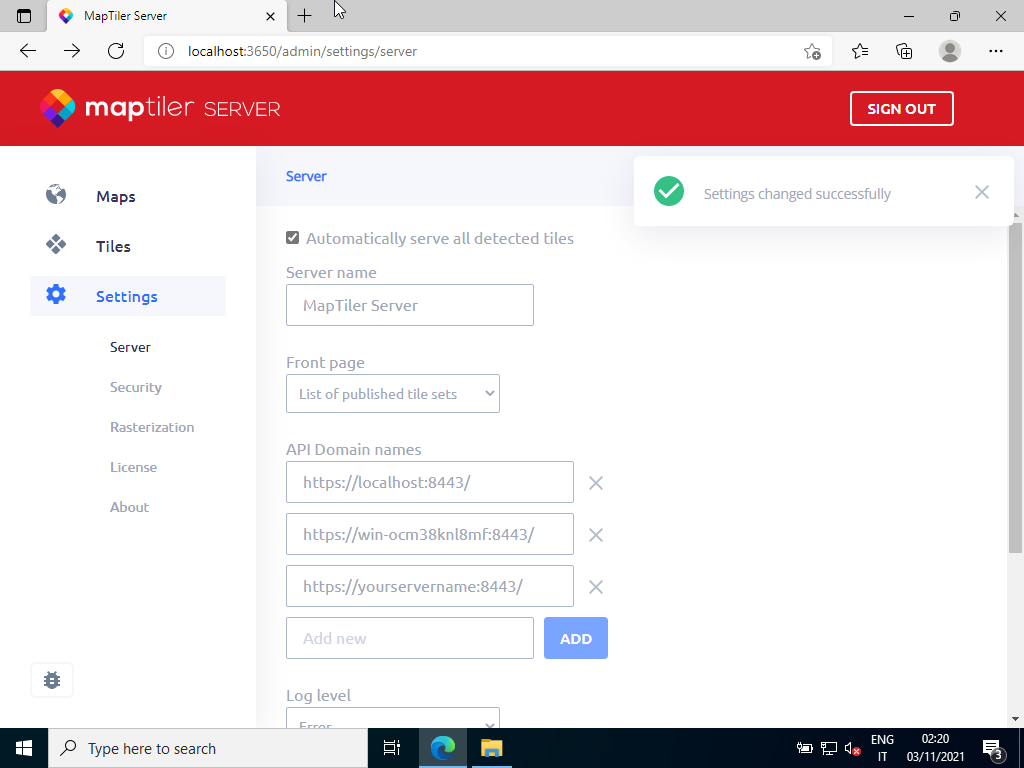
On the server please add the server urls that will be used by the clients
To use the server in https you have to install 2 iis pakages on the server:
Once installed both pakages you have to enable Application request routing on iis:
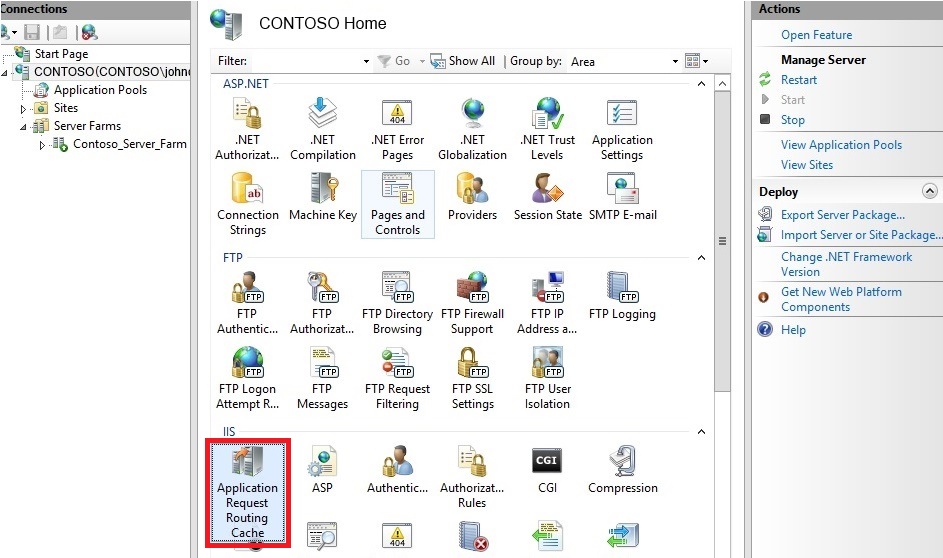
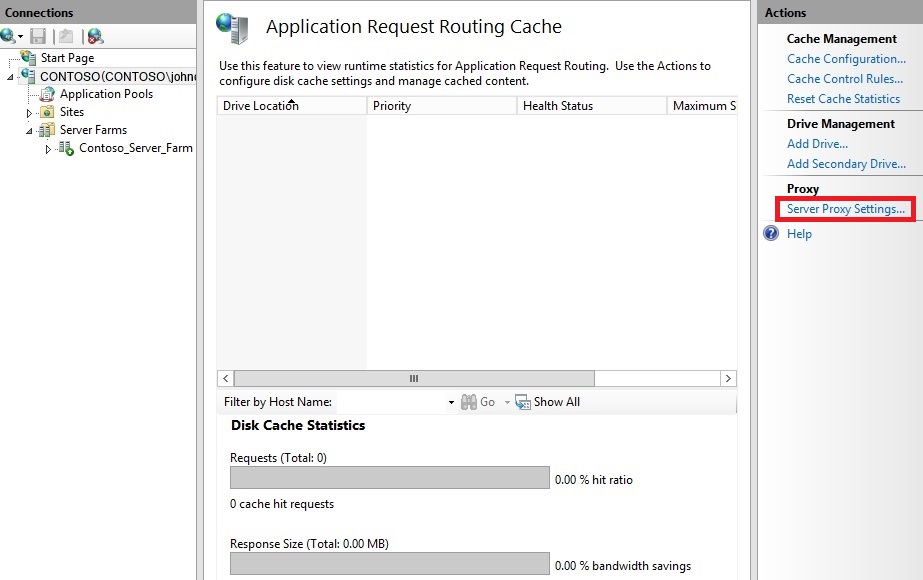
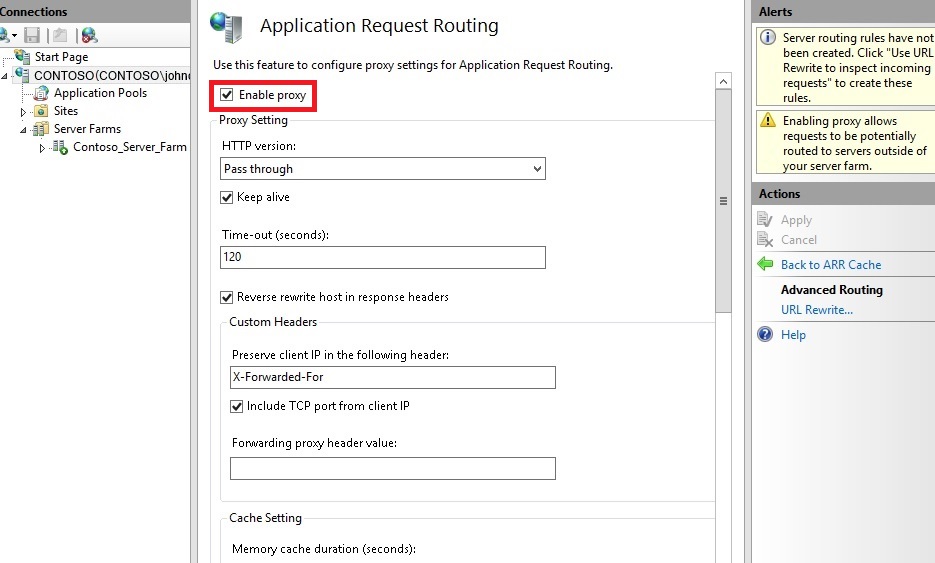
Now you can create a new website using https on port 8443.

Place a web.config file with this content on the website root folder.
<?xml version="1.0" encoding="UTF-8"?>
<configuration>
<system.webServer>
<rewrite>
<outboundRules>
<rule name="ReverseProxyOutboundRule1" preCondition="ResponseIsHtml1">
<match filterByTags="None" pattern="http://localhost:3650/" />
<action type="Rewrite" value="https://{LOCAL_ADDR}:{SERVER_PORT}/" />
</rule>
<rule name="RestoreAcceptEncoding" preCondition="NeedsRestoringAcceptEncoding">
<match serverVariable="HTTP_ACCEPT_ENCODING" pattern="^(.*)" />
<action type="Rewrite" value="{HTTP_X_ORIGINAL_ACCEPT_ENCODING}" />
</rule>
<preConditions>
<preCondition name="ResponseIsHtml1">
<add input="{RESPONSE_CONTENT_TYPE}" pattern="^application/json.+" />
</preCondition>
<preCondition name="NeedsRestoringAcceptEncoding">
<add input="{HTTP_X_ORIGINAL_ACCEPT_ENCODING}" pattern=".+" />
</preCondition>
</preConditions>
</outboundRules>
<rules>
<rule name="ReverseProxyInboundRule1" stopProcessing="true">
<match url="(.*)" />
<action type="Rewrite" url="http://localhost:3650/{R:1}" />
<serverVariables>
<set name="HTTP_X_ORIGINAL_ACCEPT_ENCODING" value="{HTTP_ACCEPT_ENCODING}" />
<set name="HTTP_ACCEPT_ENCODING" value="" />
</serverVariables>
</rule>
</rules>
</rewrite>
</system.webServer>
</configuration>

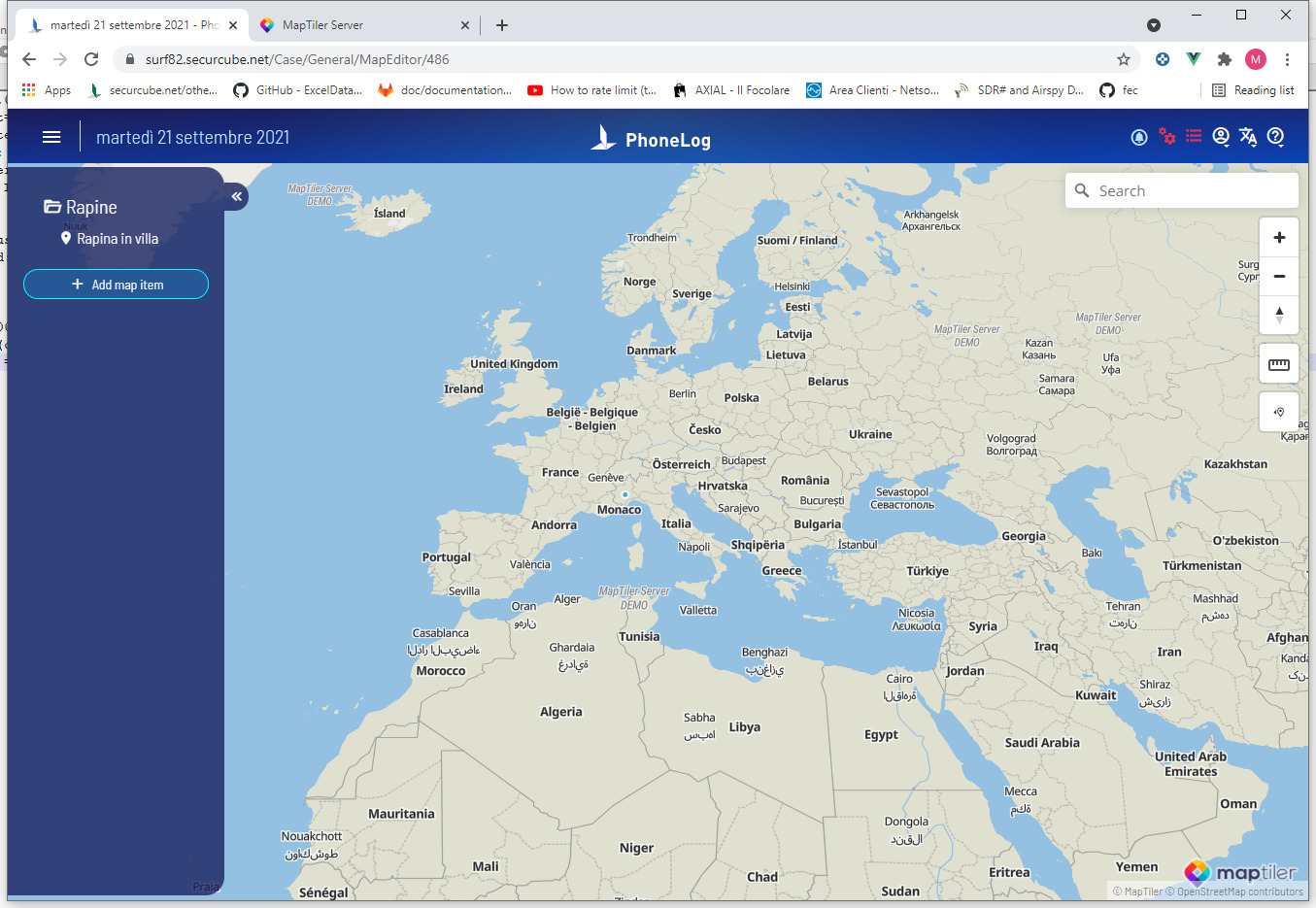
Please note, if you need to set up the online map please refer to the dedicated area in the this guide: Admin: initial set up of the program